

Table of Contents
- Why Verifying Hardware Wallet Authenticity Matters
- What You'll Need Before Starting Verification
- How to Check if a Hardware Wallet Is Genuine: Initial Inspection
- How to Verify Ledger Hardware Wallet During Setup
- How to Verify Trezor Hardware Wallet During Setup
- Checking Firmware Integrity and Testing Device Functionality
- Hardware Wallet Recovery Phrase Safety and Verification
- What to Do When a Verification Check Fails
- Frequently Asked Questions
Last Updated: October 11, 2026
Why Verifying Hardware Wallet Authenticity Matters
Hardware wallets keep your cryptocurrency safe by storing private keys offline. But here's the problem: a compromised device defeats the entire purpose. According to research on hardware security token authenticity, the end user bears final responsibility for verifying whether a newly purchased device is authentic and unmodified.
 Trezor Model OneView product
This matters because counterfeit or tampered wallets can steal your assets without you ever knowing. A fake device might look identical to the real thing but secretly record your seed phrase. The verification process takes about 15 minutes and eliminates this risk entirely.
The hardware wallet market is growing fast. The market reached USD 0.72 billion in 2026 and is projected to grow to USD 2.25 billion by 2031, at a 25.59% CAGR (Mordor Intelligence, 2026). As more people buy wallets online, the risk of counterfeits increases. Verification isn't optional anymore, it's essential.

What You'll Need Before Starting Verification
Gather these items before you begin:
- The hardware wallet (unopened or newly received)
- Original packaging and all included materials
- Your computer or phone with internet access
- The official companion app (Ledger Live, Trezor Suite, or equivalent)
- A small amount of cryptocurrency for testing (optional but recommended)
- Backup cards or paper for recording recovery phrases
Set aside 15-30 minutes in a quiet space. Close other apps and avoid distractions. You need to focus on details.
How to Check if a Hardware Wallet Is Genuine: Initial Inspection
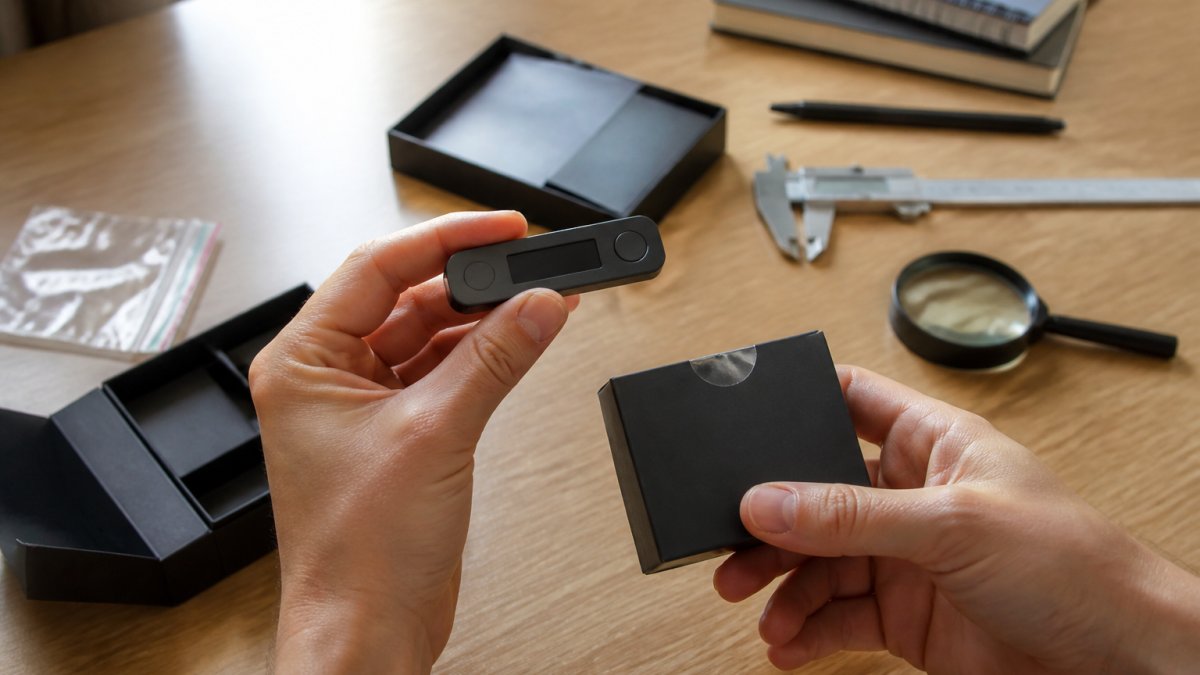
Before plugging anything in, inspect the physical device and packaging. This first step helps you verify hardware wallet authenticity by catching obvious counterfeits and signs of tampering.
Verify Packaging and Purchase Provenance
Start with the box. Legitimate wallets come in sealed, professional packaging. Check for:
- Tamper-evident seals or hologram stickers
- Clear, crisp printing with no spelling errors
- Serial numbers that match documentation
- Consistent branding and logos
- No signs of opening or resealing
Counterfeiters often cut corners on packaging. Blurry printing, misaligned text, or cheap materials are red flags.
Where you bought the wallet matters. Purchase only from authorized resellers or the manufacturer directly. The Crypto Merchant is an authorized distributor of Trezor and SecuX wallets. We verify every device before shipping. If you bought from an unauthorized marketplace, you're taking on more risk.
Keep your receipt or order confirmation. It proves purchase date and source.
Inspect the Physical Device
Remove the device carefully. Examine it closely:
- Check for visible damage, cracks, or loose components
- Look for signs of previous use (dust, scratches, wear)
- Verify the display works (if the model has one)
- Test the buttons for smooth operation
- Inspect the USB port for debris or damage
- Confirm all included accessories are present
A brand-new device should look pristine. If it shows signs of use, something's wrong. Don't proceed, contact the seller.
Compare the device to official product photos on the manufacturer's website. Details should match exactly. Font sizes, button placement, and connector types should be identical.
How to Verify Ledger Hardware Wallet During Setup
Ledger wallets include built-in verification in their setup process. The official Ledger Live app checks device authenticity automatically.
Step 1: Download Ledger Live Get the app from ledger.com only. Never use a link from an email or ad. Download directly from the official website.
Step 2: Connect and Initialize Plug your Ledger into your computer via USB. Open Ledger Live. The app will detect your device and start the setup wizard.
Step 3: Allow Authenticity Check Ledger Live automatically verifies the device during setup. You'll see a message confirming the wallet is genuine. This happens before you create any accounts or transfer funds.
Step 4: Set PIN and Create Backup Create a PIN (4-8 digits). Write down your 24-word recovery phrase on the backup cards provided. Store the cards securely offline.
Step 5: Verify Your Address After setup, check that addresses displayed on your Ledger match those in Ledger Live. They should be identical. If they differ, stop immediately and contact Ledger support.
The Ledger Nano X ($99.00) includes Bluetooth, making mobile verification easier.
 Ledger Nano XView product

How to Verify Trezor Hardware Wallet During Setup
Trezor wallets use a similar verification approach but with some differences. The setup process is straightforward and security-focused.
Step 1: Download Trezor Suite Get Trezor Suite from trezor.io only. Install on your computer or use the web version.
Step 2: Connect Your Device Plug your Trezor into your computer. Trezor Suite will detect it automatically.
Step 3: Start Setup The setup wizard will guide you through initialization.
Step 4: Write Down Recovery Phrase Your Trezor displays the 24-word recovery phrase on its screen.
Step 5: Create PIN Set a PIN to protect your device. Use something you'll remember but others can't guess.
Step 6: Verify Authenticity Trezor Suite will verify your device is genuine. You'll see confirmation before accessing any accounts.
Step 7: Test a Transaction Send a tiny amount of cryptocurrency to your new address.
The Trezor Model One ($29.00) offers excellent security at an affordable price. The Trezor Model T ($59.00) adds a color touchscreen for easier navigation.
 Trezor Model TView product

Checking Firmware Integrity and Testing Device Functionality
Firmware is the software running on your hardware wallet. Compromised firmware could steal your keys. Verify it's legitimate and up to date.
Trezor Model One Hardware Wallet →
Check Firmware Version Open your wallet's companion app. Look for the device information section. Note the firmware version.
Verify Firmware Hash Some manufacturers provide firmware hashes. These are unique digital fingerprints.
According to research on hardware wallet security by Dabrowski and coauthors, verifying bootloader and firmware authenticity using hashes is a critical security practice.
Run a Test Transaction Send a small amount of cryptocurrency to your wallet. Verify the transaction details on your device screen before confirming. Check that:
- The receiving address matches what's shown in the app
- The amount is correct
- All fees are displayed
- Your device asks for confirmation before processing
After the transaction confirms on the blockchain, verify the balance in your wallet app. It should match the amount you sent.
Test Recovery This is the most important test. It proves your backup actually works.
Create a new wallet on your device. Write down the recovery phrase. Reset the device to factory settings.
Only do this test with a small amount of funds. Once you're confident recovery works, you can transfer larger amounts.
Hardware Wallet Recovery Phrase Safety and Verification
Your recovery phrase is everything. Anyone with it can access your funds. Protect it like you'd protect your house keys.
Never Share Your Phrase Not with support staff, family members, or anyone else. Legitimate support will never ask for it.
Never Type It Into a Computer Write it by hand on the cards provided with your wallet. Paper is safer than digital storage.
Store Multiple Copies Securely Keep one copy in a safe at home. Keep another in a safe deposit box or another secure location.
Test Recovery Before Moving Large Funds Before transferring significant cryptocurrency, verify your backup works.
Watch for Scams Scammers pose as wallet support and ask for recovery phrases. They use fake websites and emails.
The FTC warns about cryptocurrency recovery phrase scams. Criminals prey on people who've lost access to wallets.
What to Do When a Verification Check Fails
If any verification step fails, stop immediately. Don't transfer funds. Don't use the device. Troubleshoot first.
Device Not Recognized If your computer doesn't detect the wallet:
- Try a different USB port
- Use a different USB cable
- Restart your computer
- Reinstall the companion app
- Try a different computer if available
If the device still isn't recognized after these steps, contact the manufacturer's support team. Do not use an unrecognized device.
Authenticity Check Fails If the companion app says the device isn't authentic:
- The device may be counterfeit
- The firmware may be compromised
- The device may be damaged
Contact the seller immediately. Request a replacement or refund. Do not use the device. Do not transfer funds to it.
Address Mismatch If addresses in the app don't match addresses on the device:
- The device may be compromised
- The app may be counterfeit
- There may be a software bug
Disconnect immediately. Reinstall the official app from the manufacturer's website. Reconnect and check again. If the problem persists, the device is unsafe. Contact support.
Recovery Phrase Test Fails If your recovery phrase doesn't restore your wallet correctly:
- You may have written it incorrectly
- A word may be misspelled
- The order may be wrong
- The device may be defective
Check your written phrase against the original. Verify spelling and order. Try recovery again. If it still fails, contact manufacturer support. Do not transfer large amounts until recovery works reliably.
Firmware Update Fails If a firmware update won't complete:
- Your internet connection may be unstable
- The update may be corrupted
- The device may have a hardware issue
Reconnect to a stable internet connection. Try the update again. If it fails repeatedly, contact support. A failed firmware update can leave your device in an unsafe state.
| Verification Step | What to Check | If It Fails |
|---|---|---|
| Packaging | Seals, printing, serial numbers | Contact seller, request replacement |
| Physical device | No damage, no signs of use | Do not use, request refund |
| Authenticity check | App confirms device is genuine | Disconnect, contact manufacturer |
| Firmware version | Current version matches official | Update firmware through official app |
| Address verification | Device and app addresses match | Disconnect, reinstall app, retry |
| Recovery test | Backup restores wallet correctly | Check written phrase for errors, retry |
| Test transaction | Amount and address confirmed on device | Verify blockchain, check balance |
Verifying your hardware wallet authenticity takes 15 minutes and prevents catastrophic loss. Start with the Trezor Model One Hardware Wallet at $29.00 if you're new to hardware wallets, or upgrade to the Trezor Model T at $59.00 for a touchscreen interface.
Frequently Asked Questions
How do I verify that my hardware wallet is authentic?
Start by purchasing from authorized distributors like The Crypto Merchant, which guarantees authenticity. Inspect the packaging for intact seals and holograms. During setup, use the official companion app, Ledger Live for Ledger devices or Trezor Suite for Trezor wallets, which performs automatic authenticity checks before normal use. Compare the device's displayed address with what appears in your wallet software. If all checks pass and the device responds correctly to firmware verification, your wallet is authentic.
Can I verify a hardware wallet if the packaging has been opened?
An opened package raises concerns but doesn't automatically mean the device is counterfeit. Check for tampering signs: broken seals, missing components, or damage inconsistent with normal shipping. The real test is firmware verification during setup. If the device connects to the official app, passes signature tests, and displays the correct recovery phrase during initialization, it's likely genuine. However, if you're uncomfortable with an opened package, contact The Crypto Merchant for a replacement, authenticity is guaranteed with every purchase.
What should I do if my hardware wallet verification fails?
Stop using the device immediately and do not enter your seed phrase. Disconnect it from your computer. Contact The Crypto Merchant with details of what failed: Did the official app reject it? Did firmware verification return an error? Did the device display unexpected behavior? We'll help you determine whether to request a replacement. Never attempt to use a device that fails official verification checks, as it may be compromised or counterfeit.
How do I safely handle my hardware wallet recovery phrase?
During setup, the device displays your recovery phrase (typically 24 words). Write it down on the included backup cards by hand, never photograph it or store it digitally. Never share this phrase with anyone, including support staff. Store the physical backup in a secure location separate from your device, such as a safe deposit box. The recovery phrase is the master key to your wallet; if someone obtains it, they can steal all your crypto. Treat it with the same security as your most valuable documents.


